Categeries

Showing posts with label TipsnTricks. Show all posts

Tuesday, 26 April 2016

How to Upgrade your Windows Phone to Windows 10


The Upgrade Advisor app will tell you if your Windows Phone 8.1 device is eligible for the upgrade to Windows 10 Mobile. If you're eligible, it can also help free up space on your device so you're ready for the upgrade. So now you can upgrade to windows 10 mobile.


Steps to Upgrade to Windows 10 Mobile -


  1. Download the App "Upgrade Advisor" from the Store, and open it.


  2. Now it will pop-up this message just do Next..Next.. and wait for the app to check for updates to Windows 10.
  3. If your Windows Phone is eligible for Windows 10 it will say the below message and Updates will automatically strat in your Settings>Phone Update.

**NOTE :-  This Update will only be done on WI-FI not on Mobile or Cellular Data.

Regards,
World's Hackers

Tuesday, 8 September 2015

Download Windows 10 PRO (x32)

Microsoft gives first look at Windows 10, highlighting enterprise advancements and open collaboration. Windows 10 adapts to the devices customers are using. Windows 10 builds nearly everything that businesses need right into the core of the product.


-- Features


1)Comes with New Stunning Microsoft Edge
2)Meet the Cortana
3)Multi-Desktop Working Upto Infintiny
4)Stunning Start Look


-- System requirements


RAM:
1GB for 32-bit or 2 GB for 64-bit

Hard disk space:
16 GB for 32-bit OS 20 GB for 64-bit OS

Graphics card:
DirectX 9 or later with WDDM 1.0 driver

Display:
800x600

Download Links -


Windows 10 + Activator + CD Key  - Click Here
Only Activator  - Click Here
CD Key - W269N-WFGWX-YVC9B-4J6C9-T83GX

*Note -  Copy CD key in any paper or any place before start installing it. It will ask for Cd Key at the very first moment.

Regards,
World's Hackers

Friday, 5 June 2015

How to Change Your Facebook Login Screen With Your Image


Are you bored of the same Facebook Login screen each and every time while signing in? Add some colors to the boring-blue facebook login screen.

With some tweaks you can change the entire look of your facebook appearance. And this is only for Google Chrome Users, there is an extension in the Chrome Web Store which lets us to change the login screen of Facebook with our custom images.

If you’re bored with your facebook login screen then just refresh it with one of the coolest extension FB refresh. Follow the steps below to get started.

Installing FB Refresh 


  • First of all you will need to install FB Refresh extension on your Google Chrome browser.
  • Now click on Add To Chrome button to add it to your browser.
  • And now you will be asked for confirmation to add the extension to Google Chrome, click Add.


  • Now after adding the extension to Google Chrome, you need to navigate to More Tools-> Extensions.


  • Then find for the FB Refresh extension on the extensions page, and press options.


  • Here you will find many settings such as uploading our own image as the Facebook login page and other customization settings


Note - You can also go to Themes to choose themes ot you can upload your pic in Custom themes.

And here are some of the screenshots of the Facebook login screen after using this extension.


Enjoy !!!!

Regards,
World's Hackers

Tuesday, 5 May 2015

How to Change your Battery, Wi Fi, and Data indicators on iOS 7 (Jailbre...


Alkaline is another must-have tweak if you want to customize the look and feel of your jailbroken iPhone. It lets you change your iPhone’s Battery, Wi-Fi, and Data indicators.

For this u have to jailbreak your iOS so for jailbreak see this -  http://www.worldshackers.blogspot.in/2015/04/how-to-jailbreak-ios-in-5-minutes.html


Its Free!!!

Thanx for watching our video

Please! Subscribe our YouTube Channel...


Regards'
World's Hackers

How to Change Font in iOS (JailBreak Needed)


BytaFont 2 allows you change the system font on your jailbroken iPhone. It allows you to change the font in apps, Lock screen, and more.

For this u have to jailbreak your iOS so for jailbreak see this -  http://www.worldshackers.blogspot.in/2015/04/how-to-jailbreak-ios-in-5-minutes.html


Its Free!!!

Thanx for watching our video

Please! Subscribe our YouTube Channel...


Regards,
World's Hackers

Tuesday, 28 April 2015

How to install Windows 10 Preview to your Lumia Windows Phone


Microsoft released the Windows 10 Preview for a subset of Lumia Windows Phones. Many questions abound about the update, as some phones are getting it, and others are not. Our AT&T Lumia 830, fresh out of the box with build 14157 of the Windows Phone 8.1.1 OS is getting the update while our Lumia 830 (UK, with Developer Preview) is not.

Here is how to try and get the update for your Windows Phone, assuming your phone meets the requirements.

Steps:

  • Download the Windows Insider App from the Store.
  • Launch the app and login with your Microsoft Account, also make sure you are enrolled in the Insider program (insider.windows.com)
  • Choose Insider Slow or Fast, depending on how risky you want to be and how quickly you want updates
  • Confirm your acceptance of the Insider program, including the fact you may void your device's warranty
  • Hit the check mark
  • Go to Settings>Phone Update>Check for Updates
  • The phone may need to go through another step to get the Windows 10 build, as seen in the dialog screen below

Your phone should now start downloading the Windows 10 Preview update. You will want to be on Wi-Fi and make sure your battery is charged at least 40%.

It is not yet clear if the Preview for Developers program needs to be enabled or disabled during this process. We will update this story as more information becomes available.

Depending on how much storage you have on your phone, the update could take upwards of 20 minutes but it will vary. You may also need to update to Windows Phone 8.1 build 14219 first before going to Windows 10 for phone.

Regards,
World's Hackers

Friday, 17 April 2015

Make Windows 7 Genuine In Few Simple Steps

Often because of low budget many of us used to get a pirated copy of Windows instead of a Genuine one. Pirated version causes many update problems and lack of support etc etc. Here we have a few steps by following it you can turn your Pirated Windows 7 copy into a Windows 7 Genuine copy.

Making Windows 7 Genuine:

  • First of all you have to go to start menu and type Command Prompt there now right click on “Command Prompt” and run it as administrator.
  • The Next Step is which you have to do is type SLMGR -REARM in “Command Prompt”. Make sure to press space after typing SLMGR other wise it will fail.
  • Now press “Enter” and you will get this Dialogue box.
  • After getting this Dialogue box, save all your work immediately and then restart your PC.
  • When you have restarted your PC, Hurray! its now Genuine. You have simply turned your pirated Windows 7 Copy into a Windows 7 Genuine copy.
To verify it you can go to “Computer Properties” and there you will see this (see screenshot).


You will notice the “Microsoft Genuine Logo” will be there which was not there previously indicating now you have turned a pirated copy of Windows 7 to a Windows 7 Genuine copy.

Enjoy.

Regards,
World's Hackers

Tuesday, 7 April 2015

Air Call-Accept- Can Answer your Phone Call without Touching it


Download Link: Click Here.

Suppose you are eating food or any other activity in which your hand is become dirty and Suddenly a important Phone Call is come then to answer it you have to touch it with your dirty hands but you don't want to  do this and you don't have phone like Smasung Galaxy S4.So, just Simply install Air Call-Accept your Android Phone it is free.By installing it you can effortlessly answer or reject your phone calls without even touching it!
Using the proximity sensor on your phone, it detects when you wave your hands over the screen or when you place the phone to your ear.
Especially useful for drivers with a bluetooth headset, it means you don't have to fiddle around trying to press the correct button, leaving you to concentrate on the road.
If you don't use a bluetooth headset, you can automatically turn speakerphone on to answer calls within the settings, again making life easier on the road.

Key features:

* Answer calls:
When your hands or ear close to the proximity senor, it will auto answer the received call.
If you driving the car, you can auto answer the call.
* Reject calls :
When your hands or ear close to the proximity senor, it will control the phone to reject the received call.
If you are busy, you can easy to reject call.
* Speaker on when answer call:
When answer the call, it will turn on the speaker automaticly.
If your mouth cannot close to the microphone, you can set the Speaker on.
* Send SMS when reject call:
It will send SMS to caller when reject the call. You can specify the SMS message content at setting page.
* Show useful tools dialog when end call:
You can call back, send SMS, or add to contacts, send other contact to the caller.

Saturday, 4 April 2015

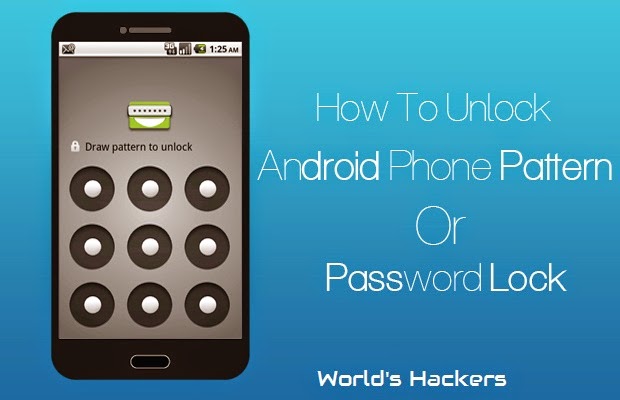
How To Unlock Android Phone Pattern And Password


If your friend have stored your personal data like Private Photo, Info, etc in his/her Android Phone and you want to delete from your friend's phone.But, you can't do because of his/her Phone Pattern Lock and any other Security; than don't worry here is the trick from which you can delete data from his/her Phone and also able to break his/her phone Security.

Steps to Do:


  • First of all Power Off your device.
  • Now hold this buttons all together at the same time “Volume up + Home Key + Power Button” until the phone boots (if you device doesn’t have a home button just hold together volume up key and power key.
  • Now a screen like DOS will come up with different options
  • Use the volume key to move up and down then scroll down to “Restore Factory Defaults” or “Delete all User Data” depending on which is on your device.
  • After clicking on the settings above, now scroll down to “Reboot System Now ” and wait for your phone to reboot.
  • That's all, you successfully unlocked your android phone password and pattern.

Note : 


  • This method deletes all your data and apps.
  • In step 2 of this method we use three keys Volume up, power and home. But in some phones home is not available so you can press Volume up and down with power button. Here we are not going to tell you all combination of buttons for factory reset. So you can search for your specified android smartphone or tablet.
Regards,
World's Hackers.

Tuesday, 31 March 2015

How to Enable Quick Edit Mode in the Command Prompt


We are big user of cmd/command prompt, and a feature We use a lot is Quick Edit, by default it disabled, but it can come in very handy when you want to highlight some text or command you may have just typed out in command prompt window.This make you all to work easily with CMD. To do it just follow the given Steps:

  • Click Start Button and then type cmd.
  • Now click on the Command Prompt icon at the top-left of the window. Then select Properties.

  • Look for Edit Options. Check mark the box for Quick Edit Mode and then press OK to confirm and close Properties window.
  • Now, once QuickEdit is enabled, you can use your left mouse button to highlight and select any text or commands inside the Command Prompt window. This can come in very handy and speed up productivity.
That’s it, enjoy this little tip. Share with your friends if you found it helpful.

Regards,
World's Hackers.

Monday, 16 March 2015

SHAREit -Share your files with any device. Any-time, anywhere.


For Windows PC: Download Now
       For Android: Download Now
For Windows Phone: Download Now     
               For iOS: Download Now

In this generation using smartphone,PC,etc. become a very common thing and people who use it also share things with each other.But many software not support all devices.But, SHAREit is an application which allow you to share with all devices such as Windows PC, Android, iOS and even with Windows Phone.

Advantages of Using SHAREit:
  • SHAREit allows you to send content including files, photos, video and documents, at lightning fast speed.
  • Send files in seconds, from 1mb to 100gb.
  • SHAREit works on all Windows, Android, and Apple devices
  • USB keys are not safe!USB devices - all of them - have some defect that allow a malicious hacker to take over your computer!Like US! SHAREit is the safe way to share files among your devices.
Regards,
World's Hackers.

Thursday, 12 March 2015

Speed Up Your Browser by Using Speedyfox.


Download Link For Windows: Click Here.
Download Link For Mac OS: Click Here.

Firefox and Chrome are the best and most used Browsers of this time.  But Firefox and Chrome uses most of the RAM usage which results in lagging of the PC by using this.

Browser speed also depends on the number of addons/extensions installed, since the installed addon/extension will uses the internet consumption.

So inorder to overcome this problem, there is a software which allows to speed up our browsers by reducing their RAM usage.


The Big Disadvantages of this Browsers are their Working Speed On Pc Is Very Slow and It get Crashed many times.

Features of Speedyfox:
  • Boost Startup in up to 3 times!
  • Speed-up browsing history
  • Overall quicker operation
  • Smaller profile size
  • Available for both Windows and Mac OS


Best App for Rooted Android Devices


Once you root your Android device, you must check out following useful apps for rooted mobile phones on Google Play Store:
  • Titanium Backup
  • Greenify
  • Set CPU
  • ROM Manager
  • RAM Booster
  • ROM Toolbox
  • NoBloat
  • Lucky Patcher
  • Game Killer
  • Wifi Kill
You can search on Play Store for many other useful apps specifically developed for rooted devices.
You can also try custom ROMs to change your Android mobile phone's look-n-feel.

Regards,
World's Hackers

How To Root/Unroot Any Android Device?


If you are using an Android mobile phone, you might be aware of the term "Rooting". Many times when we search for apps, mobile firmware, etc on Internet, we come across this "Rooting" term. Many people regularly ask us various questions regarding rooting Android mobile phones. The most frequently asked questions include what is rooting, how to root Android mobile phones, Is it Safe to Root?, etc.

So, For Kown What is Android Rooting? Is it safe to Root android ? Click on Below Link:


And For How To Root/Unroot Any Android Device? We have mention only Two Methods here although there are several methods.
Follow the Steps given below to Root your Android Devices:

# Method 1 : By Using Kingo Root:
Kingo Root is  a free and easy to use program to root any Android device. I have tried it to root Samsung Galaxy S3  mobile phones and it worked without any problem.
  • First of all download the software using following link:
To Download Kingo Root: Click Here.
  • After installing the program, launch it and connect your Android device to your PC.
  • If required, enable "USB debugging" option using Developer Options in your Android device. If you can't see Developer Options in your Android device, you'll need to enable it as mentioned here.
  • Once the program detects your Android device, click on "ROOT" button and it'll start rooting your Android device.

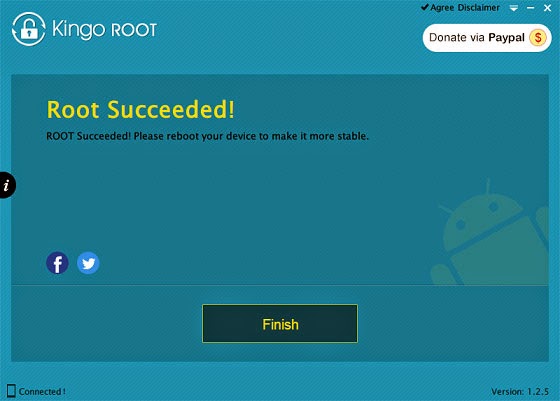
  • Root succeeded, click "Finish" to reboot your device.
  • Check the root status of your device by Using SuperSU that you will normally find installed on your Android Device.
  • You Can Also Unroot by Using this Soft By following First 4 steps and then Click on "Remove Root" option.
  • Then Click on "Finish" option.


#Method 2: Root Using Mobogenie Program.

Mobogenie is an all-in-one Android device management utility which allows you to install apps in one-click, backup your phone data, download ringtones, wallpapers and games to your device, etc.


There is another cool feature present in this software which is 1-click rooting of Android devices. Mobogenie allows users to root their Android mobile phones easily and quickly.


You can root your Android device using Mobogenie with the help of following steps:

  • First download and install Mobogenie using following link:
 Download Mobogenie From: Here.
  • Launch the program and connect your Android device to your PC.
  • Again if required, enable "USB debugging" option present in Developer Options in your Android device. If you can't find Developer Options, you can enable it as mentioned here.
  • Now click on "Toolkit" option present in the left-sidebar of the program and then click on 1-Click Root option and it'll start rooting the device.
It'll take a few minutes and your device will be rooted without any problem.Enjoy!!!!!! With your Rooted phone.

How to Unroot Android Device in Future?
Almost all PC software and mobile apps which allow you to root your Android device, also allow you to unroot the same device. You can also try "OTA RootKeeper" or "SuperSU" apps to unroot your Android device. If you don't find the option to unroot your device, you can flash an official stock firmware/software on your Android device to make it unrooted.

Regards,
World's Hackers

Wednesday, 11 March 2015

Fix Slow Performance Issues and Tabs Not Loading Problem in Google Chrome.


If you are using Google Chrome web browser and if you are facing slow performance issues, this tutorial will definitely help you.

Recently Google updated its web browser Chrome to version 36 and many people who upgraded their web browser, started facing various problems such as following:

  • Chrome is running very slow
  • Websites are loading at sluggish speed
  • Keyboard lag while typing in textboxes
  • Glitches in scrolling in webpages
  • Tabs are not opening, just showing "Loading..." text in titles
  • Overall performance issues
If you are also facing similar performance issues in Chrome and want to speed up your web browser, check out following simple steps to fix these problems:
  •  Open Google Chrome web browser and click on Control button -> Settings option. Alternatively, you can directly open the Settings page by typing chrome://settings/ in Chrome address bar.
  • It'll open Chrome Settings page. Scroll down to bottom and click on "Show advanced settings..." link.
  • Again, scroll down to bottom and you'll see "Use hardware acceleration when available" option present under "System" section. Uncheck the option and restart Chrome.
  • That's it. Now your Chrome will run Smoothly.
Regards,
World's Hackers

Thursday, 26 February 2015

VLC Media Player Unkown Feature/Uses.

In This Video you will find how to do following things using VLC:

  • How to Convert Video.
  • How to Record/Cut Video.
  • How to make video a Puzzle Game.
  • How To Capture Desktop.
Please! Subscribe our YouTube Channel...

YouTube Channel: Click Here

Like Our FB Page: Click Here

Regards,
World's Hackers


Thursday, 19 February 2015

How To Crack any version for IDM LifeTime

------------------| How To Crack any version for IDM LifeTime |------------------

Download Link - Click HeRe


Subscribe For More Videos !!!:- On YouTube Here.

Regards,
World's Hackers

Friday, 13 February 2015

How to Disable or Remove Blue (Seen) Tick Marks in WhatsApp.


This trick is especially for the people who are facing some personal problem made by WhatsApp Blue Tick i.e Seen Tick.

Steps for Disable or Remove Blue Tick i.e. Seen Tick:.

  • Go to Chat > Settings > Account > Privacy > Read receipts. Disable the read receipts option. And enjoy chatting without blue ticks WhatsApp.
Note: Your WhatsApp version should be 2.11.444 or Above.

Regards,
World's Hackers

Wednesday, 4 February 2015